Splunk Login Page
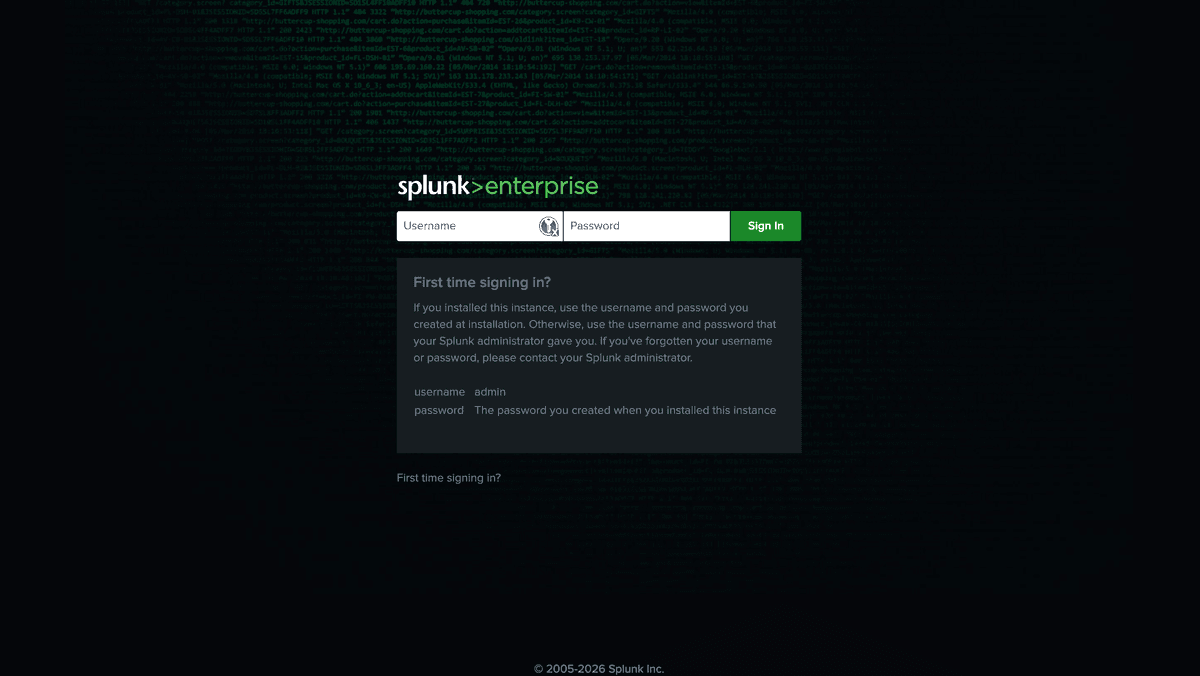
Tampilan login Splunk Enterprise yang digunakan untuk mengakses dashboard dan fitur monitoring.
Deployment Steps
- Create a VM instance on GCP (Ubuntu/CentOS recommended).
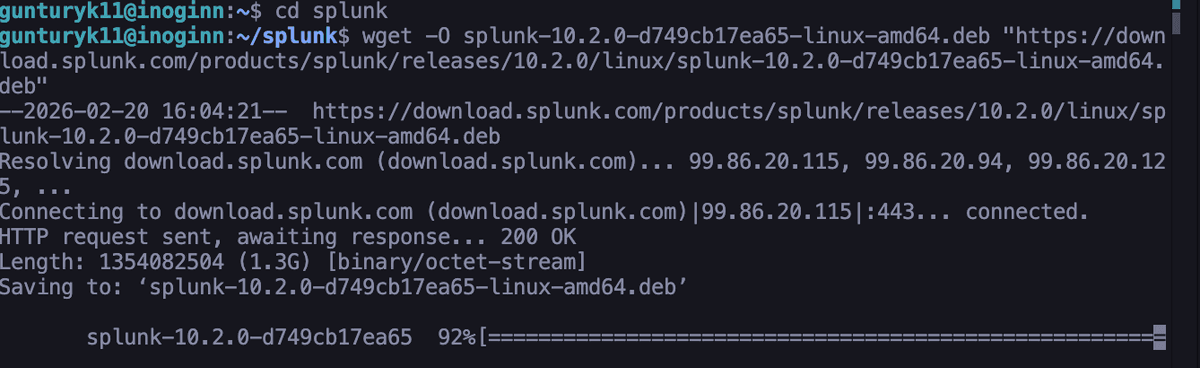
- Install Splunk Enterprise on the VM:
Terminal Installation
# Update and install dependencies
sudo apt update && sudo apt install wget -y

# Download and extract Splunk
wget -O splunk.tgz 'https://download.splunk.com/products/splunk/releases/9.0.0/linux/splunk-9.0.0-a7f645ddaf91-Linux-x86_64.tgz'
tar -xvf splunk.tgz
sudo mv splunk /opt/splunk

Splunk Dashboard Search
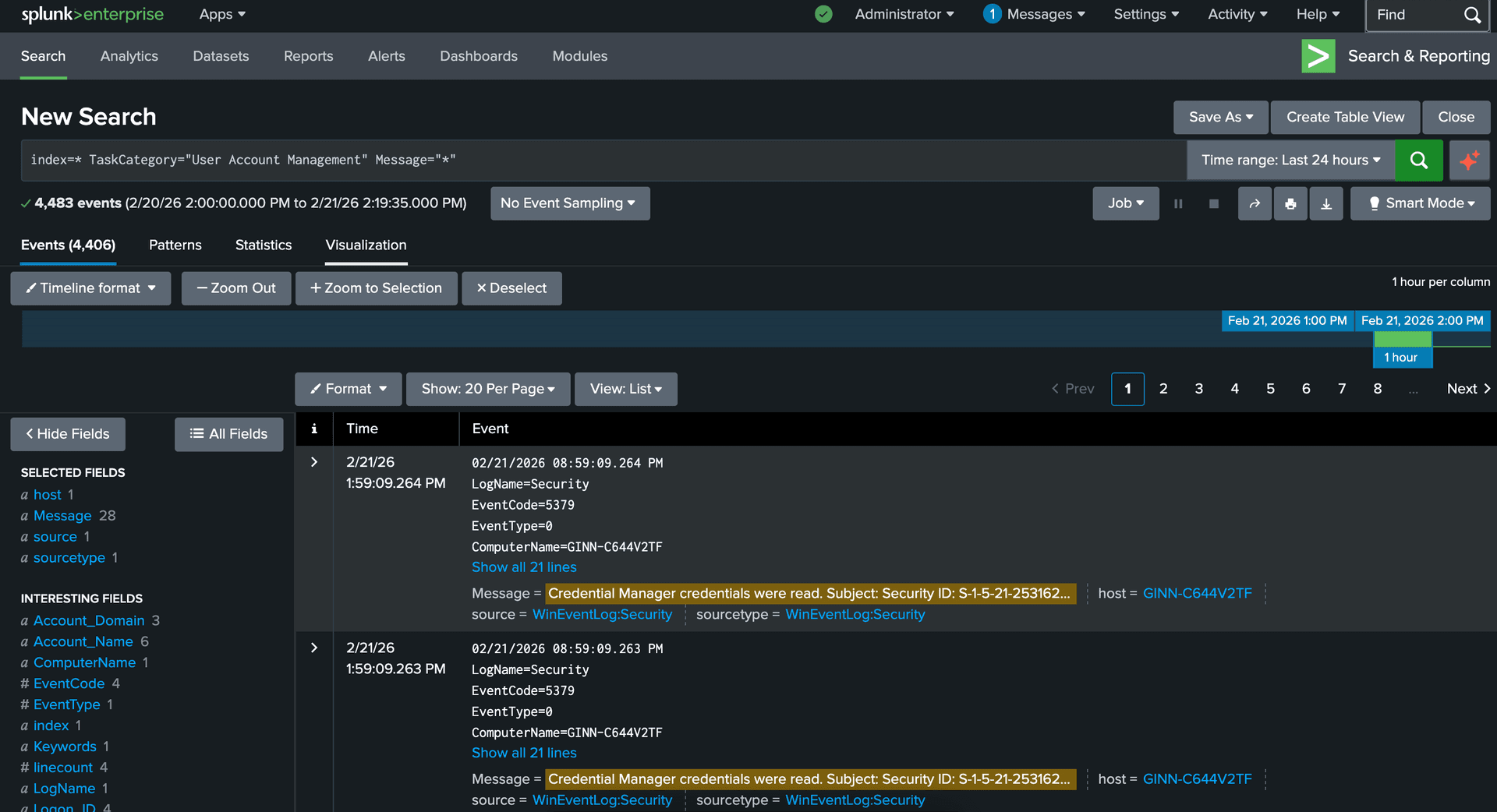
Contoh pencarian log Windows di dashboard Splunk untuk analisis event keamanan.
Log Collection from Windows
- Download and install Splunk Universal Forwarder on the Windows client.
- Configure
outputs.confto forward logs to the Splunk server:
etc/system/local/outputs.conf
[tcpout]
defaultGroup = splunk-group

[tcpout:splunk-group]
server = <IP_Splunk_GCP>:9997
Once logs are ingested, use Splunk Search Processing Language (SPL) to analyze and visualize Windows event logs. Example queries:
All Windows Logs:
index=* sourcetype=WinEventLog*Filter by Host:
index=* host="<WINDOWS_HOSTNAME>"Best Practices
Access Security
Use SSL for Splunk Web access and restrict port 8000 to trusted IPs via GCP Firewall.
Log Management
Set appropriate log retention and regularly back up configurations and data.
Proactive Analysis
Update alert templates and use cases regularly to keep up with security trends.